DOCUMENTATION
CommerceV3
In this article:
Questions?
We're here to help. Email us at [email protected]CommerceV3
Our CV3 integration is built into the CV3 platform and maintained by CV3 developers internally.
Upgrade Request
To have access to Rejoiner’s integration, you will need to submit a New Feature Request via your store’s CV3 Dashboard.
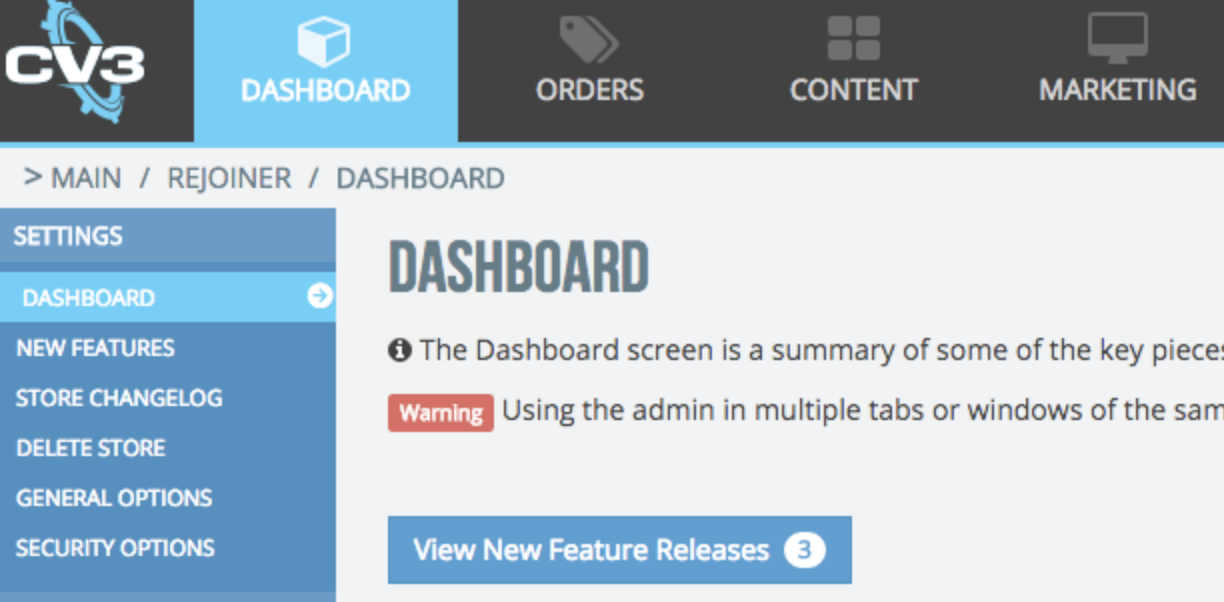
- 1From your CV3 Dashboard, click either the **View New Feature Releases** button in the content area to see only the most recently released features, or the **New Features** link on the left nav to see a list of all features and the date they were added.
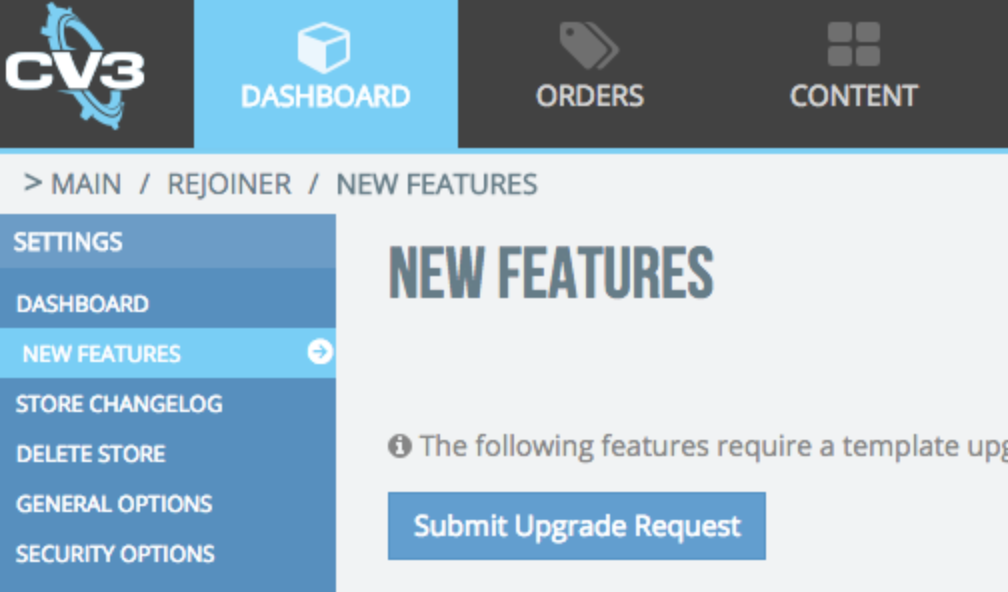
- 2You should be able to see Rejoiner listed there:
- Adding Rejoiner requires a template upgrade so you will need to check the box next to the Rejoiner feature and click the “Submit Upgrade Request” button.

- 3Enter your email address and confirm the request. Your request will be sent to support. CV3 will contact you with a quote for your update.
- Once your upgrade has taken place, you should be able to see Rejoiner as part of your New Features with a status of “Complete.” The next steps are to configure your store with Rejoiner.

Configuration Instructions
- 1From your CV3 dashboard, go into Marketing > Email Tools > Third Party and click on Rejoiner Options
- 2Your Rejoiner options will appear and you will have to input your Site ID, API Key and API Secret.
- 3Once your credentials have been added in your CV3’s Rejoiner Options, click on the blue “Submit” button to save your configuration.
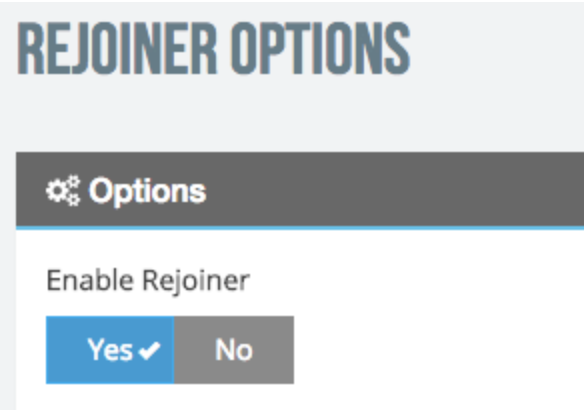
- 4Last step is no enable Rejoiner in order to complete your configuration.
If you offer PayPal as a payment option, please verify that Auto Return is activated by following these instructions.